Image to Video AI Generator

Upload a still image and create a polished image to video result with smooth camera motion, depth parallax, natural lighting changes, and clean generative movement. The generator is tuned for creators who want a fast photo to video AI workflow without timeline editing, manual keyframes, or noisy motion artifacts.

What an image to video generator does

An image to video generator turns a still picture into a short moving clip. Instead of asking you to cut footage, mask layers, or animate by hand, this image to video workflow reads the uploaded frame, understands the subject, estimates depth, and creates motion that feels connected to the original composition. Use image to video when you already have the right photo, product shot, AI image, portrait, architecture render, or campaign visual and need it to move with a cinematic finish. A photo to video AI workflow is especially useful when the still image is strong but the distribution channel expects video: TikTok, Reels, Shorts, paid social ads, product demos, landing page loops, creator teasers, or presentation backgrounds. The image to video AI model can add a slow push-in, slight orbit, drifting background light, soft parallax, atmospheric movement, and subtle subject motion while keeping the source image recognizable.

One-frame starting point

Start from one uploaded image, then let image to video AI add camera movement, depth, and believable scene motion.

Cinematic motion defaults

The photo to video AI setup favors smooth camera moves, stable subjects, natural lighting changes, and low-noise video output.

Creator-ready results

Create a short image to video clip for social posts, product reveals, portfolio loops, ad variants, and visual experiments.

Safe prompt guardrails

The default image to video prompt avoids logos, watermarks, copyrighted characters, celebrity likenesses, and unreadable text.

Best image to video AI use cases

Use this ai image to video generator when you need controlled motion from a still frame rather than a full video editing timeline.

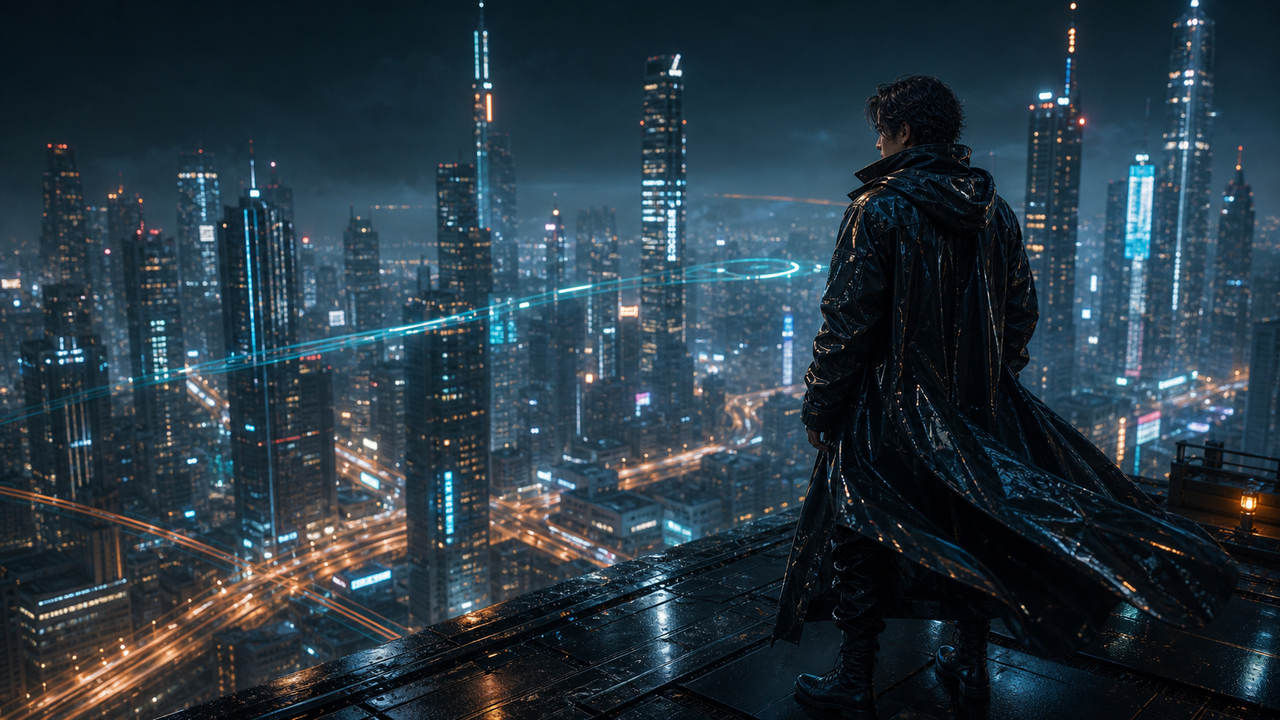
Rooftop rider keyframe for a cinematic image to video example

Photo to video AI

Turn portraits and lifestyle shots into moving clips

Image to video works well for portraits, fashion looks, rider shots, travel photos, and lifestyle imagery where the still frame already has a strong subject. Upload the picture and let the photo AI video generator add a clean push-in, a gentle camera drift, controlled hair or fabric movement, and small background light changes. The goal is not to replace the image; it is to make the image feel alive while preserving the face, body shape, pose, and composition. For best results, choose a sharp source image with clear subject separation and avoid cluttered text, heavy logos, or crowded backgrounds.

PortraitsLifestyleSocial clips
Neon city still frame used as an image to video generator example

AI image to video generator

Add motion to AI artwork, product renders, and concept frames

Many creators already make strong still images with an image generator, a product mockup tool, or a design workflow. Image to video gives those stills a second life as short campaign assets. A product render can gain reflective shimmer and a slow orbit. A concept frame can gain atmosphere and depth. A poster image can become a short teaser with parallax, light movement, and a controlled camera path. The image to video generator keeps the original visual as the anchor, so the final video still feels connected to the approved creative direction.

AI artworkProduct rendersCampaign assets
Approved keyframe for image to video campaign variations

Image to video generator

Create fast video variations from a single approved visual

When a team has one approved image, image to video can create multiple motion directions without redesigning the asset. Try one version with a slow dolly forward, another with a gentle pan, and another with more light bloom or atmospheric movement. This is useful for paid creative testing, landing page loops, creator posts, and quick brand experiments. Keep the prompt specific: mention the camera move, the subject stability, the lighting shift, the pacing, and anything that must not change. That gives the image to video AI model a clearer target and reduces drift.

VariationsAdsLanding pages

How to make an image to video clip

The image to video workflow is designed to be direct: upload a clear still frame, choose the motion style, generate, then download or share the result.

1

Upload one strong image

Choose a portrait, product shot, AI image, illustration, landscape, or campaign frame. Image to video AI performs best when the subject is sharp and the composition is already close to final.

2

Describe the motion

Write a short prompt for the camera move, subject movement, atmosphere, and lighting. If you prefer a neutral photo to video AI result, keep the prompt simple and ask for smooth cinematic motion.

3

Generate the video

The image to video generator creates a short clip from your uploaded frame. It adds depth parallax, camera movement, and natural lighting changes while preserving the source subject and composition.

4

Review and reuse

Use the finished image to video result as a social post, ad creative, website loop, presentation clip, or visual reference for a longer edit.

Image to Video FAQ

Answers for creators using image to video AI, photo to video AI, and ai image to video generator workflows.


Create your first image to video clip

Upload one still image and turn it into a short cinematic video with smooth motion, clean parallax, and natural lighting changes. Start with the image to video generator and make a social-ready clip from the frame you already like.

Try image to video